


Dev, staging, and production environments explained
TL;DR
|
Most software runs in more than one place. Developers build changes in a development environment, the team tests them in a staging environment, and customers use the result in production.
Keeping them separate means a mistake made during development or testing never reaches real users. This guide covers what each environment is for and how preview environments change the traditional setup.
What each environment is for
Key takeaway: development is for building, staging is for checking, and production is for real users. Each one is safer to break than the next.
An environment is a complete, running copy of an app: the code, the services it depends on (such as a database), and its settings. Teams usually keep at least three.
Development
The development environment is where a developer writes and tries out code. Often it is the developer's own computer, running the app with test data. Things break here constantly, and that is fine, because nobody else depends on it.
A laptop rarely matches production exactly. Versions of software differ, the data is small and made up, and the settings are local ones, which is why a change can work on one developer's machine and fail everywhere else.
Staging
Staging is a copy of production used for final checks before release. Testers, product managers, and sometimes clients review changes there. To be useful, it needs to match production as closely as possible: the same software versions, the same configuration, and realistic data.
You may also see QA, test, or UAT (user acceptance testing) environments. These are variations on the same idea, used by some teams to split testing into stages.
Production
Production is the live system: the website or app your customers use. Everything in production should already have been tested elsewhere. Access is limited, changes are deliberate, and its data is the real thing, so mistakes here have real consequences.
How code moves from development to production
Key takeaway: a change only moves closer to real users after it passes the checks at the step before.

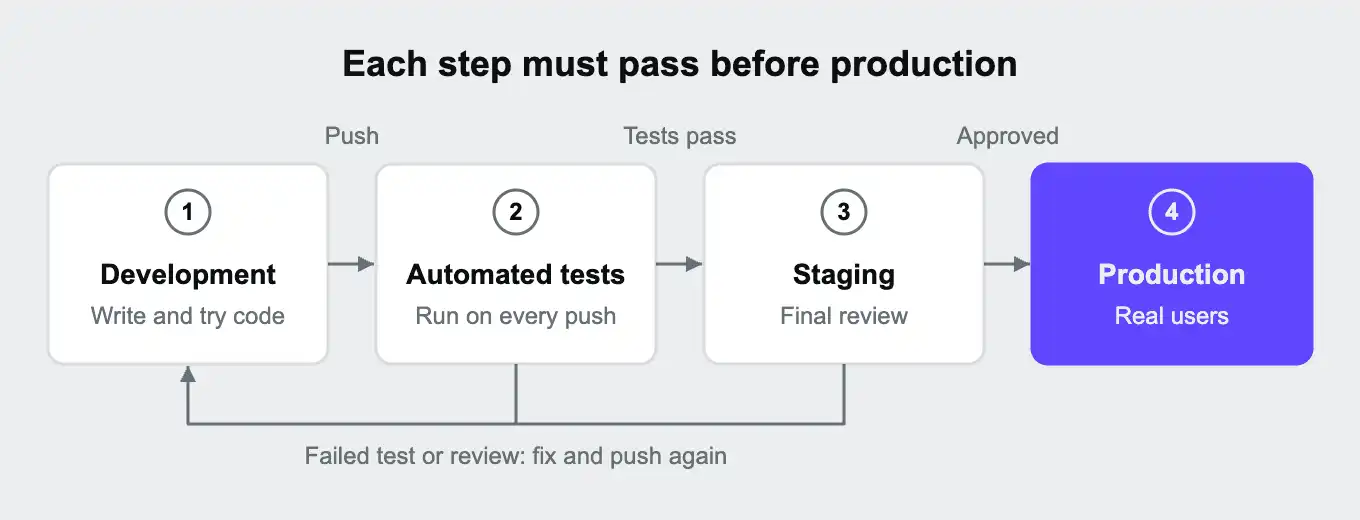
A typical path looks like this. A developer writes a change on a separate Git branch and pushes it. Automated tests run on every push, and a failure sends the change straight back to the developer. Once the tests pass, the change goes to staging for review. When reviewers approve it, it is merged and released to production.
Each step catches a different kind of problem. Automated tests catch broken code quickly and cheaply. Staging catches what tests miss, such as a page that technically works but looks wrong, or a change that behaves differently with realistic data. Nothing new should be discovered in production. The earlier steps are there to catch it first.
Dev vs staging vs production: side by side
Key takeaway: the closer an environment is to users, the more it should resemble production and the fewer people should be able to change it.
| Development | Staging | Production | |
|---|---|---|---|
| Purpose | Build and try changes | Check changes before release | Serve real users |
| Who uses it | Individual developers | Developers, testers, product managers, sometimes clients | Customers |
| Data | Small, made-up test data | Realistic data, often a cleaned copy of production | Real customer data |
| How closely it matches production | Loosely | As closely as possible | It is production |
| Who can change it | The developer working on it | The team, through deployments | A few people, through controlled releases |
| What happens if it breaks | One developer is slowed down | Testing pauses | Customers are affected |
| Settings and secrets | Local test values | Test credentials | Live credentials, tightly guarded |
Separate settings and secrets for each environment mean a test environment can never accidentally charge a real card or email a real customer. Our guide What are environment variables? explains how to keep them apart. Locally, those settings often live in a .env file, which our guide What is .env? covers.
Where the classic setup breaks down
Key takeaway: one shared staging environment turns into a queue as a team grows, and a staging environment maintained by hand slowly stops matching production.
The three-environment model works well for a small team that releases occasionally. As teams grow and release more often, two problems tend to appear.
The shared staging queue
Many teams have a single staging environment, and only one set of changes can be reviewed there at a time without the changes getting tangled. So developers wait for their turn, or several changes go onto staging together. Waiting slows releases. Sharing makes failures hard to trace, because a bug could come from any of the changes on the server.
Our post Why your team keeps waiting for staging (and what to do about it) looks at this bottleneck in detail.
Environment drift
Staging is only useful if it matches production. In practice, the two are often set up and maintained separately, and they slowly drift apart. Someone upgrades a database in production but not in staging. A setting changes in one place and not the other. Staging's data gets old, or was never realistic in the first place.
Each difference is a place where a change can pass every check in staging and still fail in production. These posts go deeper:
- "It works on my machine": why environment parity is still a platform problem
- The hidden costs of development environment drift
- Checklist: how to reduce environment drift without slowing devs or AI agents
Preview environments: a production-like copy for every branch
Key takeaway: a preview environment gives each change its own short-lived copy of production, so nobody waits for staging and every review happens in isolation.
A preview environment (also called an ephemeral, review, or branch environment) is created automatically for a single change, usually one per Git branch or pull request. It exists while the change is being worked on and reviewed, then gets removed.
Every change gets its own environment, so there's no queue and no tangle of unrelated changes. And because preview environments are created fresh from the same configuration as production each time, there is far less room for drift.
Before relying on preview environments, check four things:
| Question | Why it matters |
|---|---|
| Does it include the whole app, including the database and other services? | A preview of the frontend alone can't catch backend or data problems. |
| Is it built from the same configuration as production? | Otherwise the preview can drift just like a staging server. |
| Does it have realistic data? | Empty or made-up data hides bugs that only appear with real-world content. Copies of production data should have personal information removed or masked first. |
| Is it created and removed automatically? | Environments that need manual setup get skipped, and forgotten ones keep using resources. |
Shared staging doesn't have to disappear. Some teams keep one for final checks that need everything running together, while day-to-day review moves to preview environments. If you're moving an existing app in this direction, our developer guide for migrating to reproducible environments walks through it step by step.
Environments on Upsun Cloud
Key takeaway: on Upsun Cloud, every Git branch can become a full environment, created from the same configuration as production and with a copy of its data.
On Upsun Cloud, an environment is a running copy of your app together with every service it needs, such as its database. Each environment is tied to a Git branch:
- Production comes from your default branch, and a project has exactly one production environment.
- Every other branch can become its own environment, typed as staging or development so you can control who has access to it.
- Environments are created by pushing a branch, or by branching an existing environment from the command line or the Console. With a GitHub, GitLab, or Bitbucket integration, they can be created automatically for each pull request.
Branching from the command line or the Console copies the parent's data automatically. When you push a new branch through Git, push options or your integration settings control whether the environment is activated and the data copied.
When you branch an environment, the new one inherits the data and services of its parent, including databases, file storage, and queues. Creating a preview copy of production looks like this:
upsun branch feature-checkout mainThe new environment gets its own web address, so a tester or product manager can review the change straight away. Because every environment is built from the same .upsun/config.yaml file, production and its copies run the same software versions and services. A branch can also change that file, so you can test an upgrade safely before it reaches production. Our guide What is a YAML file? explains how to read that file.
Environments form a family tree, so a child environment can pull fresh code and data down from its parent and merge code back up. An environment can be set to inactive, which keeps its code but removes its services and data. And a preview environment that hasn't been redeployed in 14 days is paused until the next push or redeploy.
If your production data includes personal information, remove or mask it before reviewers see it. The Upsun docs include guides to sanitizing databases in preview environments. For the full picture, see managing environments in the Upsun docs.
Frequently asked questions (FAQ)
What is the difference between staging and production?
Production is the live system your users depend on. Staging is a copy of production used to test changes before they reach users. Staging should match production as closely as possible, but it uses test credentials and, ideally, cleaned-up data.
Do I need a staging environment?
You need somewhere to check changes before they reach users. That can be a shared staging environment, a preview environment for each change, or both. Small teams often start with shared staging, and teams that release often tend to add preview environments.
What is the difference between staging and UAT?
UAT (user acceptance testing) is a stage where business users or clients confirm a change does what they asked for. Some teams run it in staging, and others keep a separate UAT environment.
Is localhost a development environment?
Yes. Running an app on your own computer, reached at an address like localhost, is a common kind of development environment.
What is a preview environment?
A preview environment is a temporary, production-like copy of an app created for a single change, usually one per Git branch or pull request. It is removed once the change is merged or closed.
Should staging use real production data?
It should use realistic data, and a copy of production is the most realistic option. Remove or mask personal information first, so testers and test tools never handle real customers' details.
Sources
- Manage Upsun Cloud environments, Upsun docs
- Source integrations: GitHub, GitLab, and Bitbucket, Upsun docs
- Sanitize databases, Upsun docs
- The Twelve-Factor App: Dev/prod parity
Deploy possibility.
Try Upsun for free.
Stay updated
Upsun Cloud: compliant and validated